Photo Lock App - Hide Pictures
- 4.6
- Rating
- 100.00M
- Installs
- Free
- Price
 Analysis by App-foxy
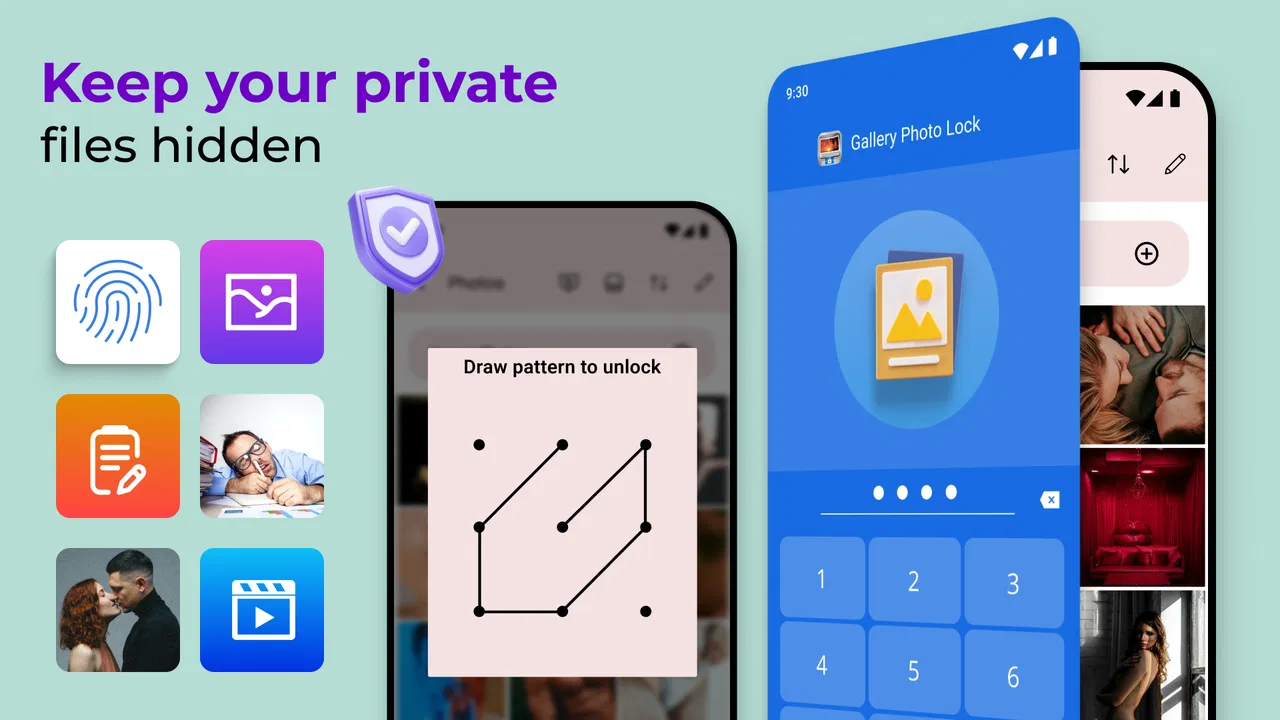
Keeping private photos and videos away from casual browsing sounds simple until you need to hand your phone to someone else. A gallery lock app can be useful in those moments, but it also deserves more trust than a typical wallpaper or theme tool because it may sit between you and personal files. I spent time looking at how Photo Lock App - Hide Pictures approaches that job, where it feels convenient, and where I would slow down before relying on it for my most sensitive material.
This is a free personalization app from Battery Stats Saver, designed around locking photos, videos, and apps rather than changing the appearance of the phone. It is available for Everyone, supports Android 8.0 and later, and the current version is 2.1.14. The app has built a large audience, with more than 100 million installs and a 4.6 average from roughly 1.2 million ratings. Those figures make it easy to see why people try it, but popularity alone is not a substitute for checking how comfortable you are with its controls and access requirements.
How Photo Lock App - Hide Pictures handles privacy in daily use
I find the most useful way to think about privacy in daily use is to plan the whole handoff, not just the moment a file enters a locked area. I would decide what stays visible, what needs an extra boundary, and how I’ll retrieve it before someone asks to borrow my phone. That small bit of preparation makes the protection easier to use consistently, while also bringing the app’s practical limits into focus.
You May Also Like

 AccuWeather: Weather Radar
AccuWeather Review: A Quick, Clear Forecast for Everyday Decisions
For everyday plans, the best forecast is the one you can understand quickly. AccuWeather makes rain timing, radar, and local conditions easy to act on, with a few trade-offs.

 Hill Climb Racing
Why Hill Climb Racing Still Turns Crashes Into One More Run
A tiny car, a bumpy hill and one more upgrade: Hill Climb Racing keeps resurfacing because its simple chaos makes every near-miss feel personal.

 AliExpress - Shopping App
AliExpress Makes Global Shopping Feel Personal, but Shoppers Bear the Risk
AliExpress turns a global marketplace into a pocket-sized discovery engine. Its reach is useful, its shopping loop compelling, and its trade-offs easy to miss.

 Lords Mobile: Kingdom Wars
Lords Mobile Is a Kingdom-Building Routine, Not a Quick Match
A case-by-case verdict on the building, battles, device demands, and social commitments that make Lords Mobile rewarding for some players and exhausting for others.

 PDF Scanner app - TapScanner
TapScanner Makes Paperwork Easier to Capture, Check, and Share
TapScanner makes scanning with a phone feel less like a rescue operation and more like a dependable step in getting work done. Its capture tools are useful, though not flawless.

 Block Blast!
Block Blast! Shows How Much a Puzzle Game Can Leave Out
A quiet grid game shows why puzzle players increasingly value instant clarity, repeatable skill and low-pressure play—and where the genre still needs to catch up.
More From Our News Desk
View All News


A practical reason to use a separate photo lock
The strongest use case is not dramatic secrecy; it is ordinary phone sharing. Imagine showing a relative one picture from a recent trip while your camera roll also contains screenshots, work documents, saved receipts, or personal images. Handing over the unlocked phone gives the other person more freedom than you intended. A dedicated lock can create a narrower doorway: you prepare the private material in advance, then leave the rest of the gallery available for normal use.
I also see value for people who lend a device to children, let a colleague check a message, or keep a second collection of images that should not appear during casual scrolling. The app’s focus on pictures, videos, and app locking makes it more targeted than simply hiding the entire phone behind a screen lock. That distinction matters because a full device lock is excellent when the phone is unattended, but inconvenient when you are actively sharing it.
There is a trade-off, though. A lock app becomes another layer to remember. If you forget its passcode, change phones, uninstall it, or move files without understanding the workflow, the convenience can turn into anxiety. I would treat it as a privacy aid for controlled access, not as the only protection for irreplaceable files.
What the large user base tells me—and what it does not
The app’s reach is reassuring in one limited sense: it is not an obscure experiment that few people have encountered. Battery Stats Saver has maintained a product that works across a wide range of Android devices, and the strong rating suggests that many users find the basic idea useful. The app is free to install, which lowers the barrier for trying it with a small, non-critical folder first.
At the same time, a high rating cannot answer the questions I care about most with private media. It does not tell me how recovery behaves after a forgotten credential, how the app reacts to an Android update, or what happens if I remove it before moving protected files back. Those are the questions I would test personally. A privacy tool should be judged not only by how quickly it hides something, but also by how clearly it lets me regain control.
Checking choices before importing personal files
My first recommendation is to open the app and inspect every visible setup screen before importing anything sensitive. Look for the exact lock method, any recovery route, prompts for additional access, and explanations shown when you choose a photo or video. I would not rush through these screens just because the main task appears straightforward. The most important decisions often happen during first setup, when an app asks for access to media or other parts of the phone.
This is also where I would review the Android permission dialog rather than tapping through it automatically. The operating system’s wording is more useful than a vague promise on a store page because it tells you what access Android is actually requesting on your device. If the request feels broader than the task you want to perform, pause and decide whether the convenience is worth it. I prefer granting access only when I am ready to import or manage files, then revisiting the permission in Android settings afterward.
Android versions can present media access differently, so the exact screen may vary from one phone to another. That is not a reason to ignore the prompt. It is a reason to read it carefully and confirm that the selected access matches your plan. For a privacy-focused app, the permission screen is part of the product experience, not an administrative detail.
Building a safer workflow instead of moving everything at once
I would begin with a small test set: a few ordinary images that would be annoying to lose but are not deeply personal. Import them, close the app, lock the phone, reopen the protected area, and check whether the files appear where you expect. Then test the reverse action. Can you return an image to the normal gallery without confusion? Does it remain visible in the original location, or does the app move it? The answer affects how you should organize backups and clean up duplicates.
This small trial is one of the most useful steps because it exposes the difference between hiding and copying. If the app relocates media, the original gallery may no longer contain the file. If it creates another protected copy, you may end up with duplicates and extra storage use. I would verify the result through the phone’s file and gallery tools before trusting the workflow with a large collection. The goal is not to assume a particular implementation, but to understand what this installation actually does.
After that, I would create a simple routine: import selected items, confirm they open inside the protected area, and only then remove any unwanted visible copies. That order prevents a rushed cleanup from becoming accidental deletion. It also makes it easier to spot a failed import before the original is gone.
Locking apps can be useful, but it changes the scope
The app is not limited to photo and video protection; it also presents itself as a way to lock apps. That can help when the real concern is not one folder but access to an entire application, such as a gallery, messaging tool, or file manager. In a shared-device situation, locking the gallery may be more practical than sorting every private image individually.
However, app locking can create more friction than media locking. If you protect an app that you open constantly, you may be entering another credential dozens of times a day. If you lock a system-related tool without thinking through the consequences, troubleshooting can become harder. I would reserve this option for clear boundaries—such as preventing casual access to a gallery—rather than locking everything simply because the feature is available.
There is another subtle point: protecting an app does not automatically protect every route to its content. A photo might also be reachable through a file manager, a messaging attachment picker, cloud storage, or a recent-files screen. I would check those alternate paths myself. A lock is only as strong as the places it leaves open.
Handling sensitive moments with more care
Private media often appears in temporary places before it reaches a protected collection. A screenshot can show up in the normal gallery, a downloaded image can be indexed by another app, and a shared file can remain in a chat or downloads folder. If I were using this app for genuinely sensitive material, I would think about the whole journey: capture, download, import, backup, sharing, and deletion.
For example, after taking a private picture, I would avoid opening the gallery in front of someone else before moving it. I would import it deliberately, confirm the protected copy or moved file, and inspect the original location. When deleting a visible duplicate, I would also check the phone’s trash or recently deleted area, because removing an item from the main gallery may not erase it immediately.
Cloud backups deserve the same attention. A lock inside the phone does not necessarily change what another backup service has already uploaded. If your concern is exposure outside the device, review the backup settings separately and decide whether those files should be synchronized. This is not a criticism unique to this app; it is an important boundary that many people miss when they hear the word “hide.”
How I would judge trust without guessing
I would not infer safety from the app’s name, its large install count, or the fact that it is free. Instead, I would use visible choices and Android’s own controls. Before committing personal material, I would inspect the app’s permissions in system settings, read the privacy information available through its store presence, and note whether the app clearly explains why each access request is needed.
I would also watch the setup and everyday interface for pressure. Are optional prompts clearly marked? Can I decline extras and still use the basic lock? Are purchase screens understandable? Does the app make it obvious when a file is being moved, copied, or deleted? These details matter because privacy is partly about control. A confusing interface can cause mistakes even when the underlying feature works as intended.
The app includes in-app purchases ranging from $0.99 to $99.99 per item. Since the basic download is free, I would first establish whether the no-cost experience covers my simple use case before considering anything paid. I would never buy an upgrade merely to solve uncertainty about file recovery or permissions. Those are trust questions that should be answered by clear explanations and testing, not by a purchase.
Where it fits beside Android’s usual alternatives
The built-in screen lock remains the first line of defense for the whole phone. It is usually simpler, integrated with the operating system, and active whenever the device is locked. If your main fear is a lost or stolen phone, I would prioritize that protection and a sensible backup plan before adding this app.
For someone who wants a small private collection, Android’s own gallery or file-management options may be enough if the phone provides a secure folder or a comparable protected space. Those tools can have an advantage because they are closer to the operating system and may reduce the number of separate credentials and permissions. On the other hand, they vary by manufacturer, while this app offers a more recognizable dedicated approach for people whose phone does not provide an equivalent feature.
Encrypted cloud storage is a different alternative. It can help with access across devices and recovery after a phone failure, but it introduces account security, synchronization, and provider-trust questions. Photo Lock App - Hide Pictures is more appealing when your priority is quick local control on one Android phone, not seamless access everywhere.
Finally, a normal file manager with renamed folders or hidden files is a weak substitute for people who need a clear lock. Those tricks can fail when another gallery indexes the media, and they are easy to forget. I would choose this app over improvised hiding if I wanted a visible, repeatable workflow, while still remembering to check other apps and backups.
Who should use it and who should skip it
I think it suits Android users who regularly share their phone, want a dedicated place for selected photos and videos, and are willing to test the import and recovery process before relying on it. It is also a reasonable option for someone whose phone lacks a convenient built-in private folder and who wants app-locking as an additional boundary.
I would skip it if you need guaranteed access from several devices, automatic professional-grade archiving, or a privacy system that requires almost no maintenance. I would also hesitate if you dislike repeated unlock prompts or if you cannot keep track of where files are stored. For irreplaceable family photos, I would use a separate backup strategy regardless of whether this app is installed.
People using an older Android phone should pay attention to the minimum requirement of Android 8.0. Anyone on a supported device should still expect menus and permission wording to differ by manufacturer. That is normal, but it means tutorials from another phone may not match your screen exactly. I would follow the choices shown on the device in front of me rather than blindly copying a guide.
My cautious verdict after weighing convenience against control
Photo Lock App - Hide Pictures is appealing because it addresses a very common problem with a focused tool: keeping selected media and apps behind an extra lock when the phone itself needs to remain usable. The free entry point, broad Android compatibility from version 8.0 onward, and strong user adoption make it an easy app to test. I especially like the idea of using it for controlled phone sharing rather than treating it as a mysterious vault for everything.
My recommendation comes with a clear condition: start small, inspect permissions, test both hiding and restoring, and check alternate copies before moving important files. Keep your device screen lock active, think separately about cloud backups, and do not assume that locking one route closes every route. Those habits make the app more useful and reduce the chance that a rushed import or deletion causes trouble.
In my view, this is a practical choice for everyday privacy, not a replacement for a complete security and backup plan. If you want a straightforward way to separate personal media from casual browsing, it is worth trying. If your needs involve cross-device access, strict archival guarantees, or minimal interaction, a built-in secure folder or a carefully chosen encrypted storage service may be a better fit. Use it as one controlled layer, and make sure you remain the person who can clearly find, restore, and manage your own files.
FAQs for Photo Lock App - Hide Pictures
01What is the main purpose of the Photo Lock App?
The Photo Lock App is designed to secure your personal photos and videos by allowing you to hide them behind a password-protected vault. It provides privacy for your media files, ensuring only you have access to them. This is particularly useful for protecting sensitive or private content on your device.
02How secure is the Photo Lock App?
The Photo Lock App uses advanced encryption techniques to safeguard your files. It supports PIN, password, and fingerprint authentication for added security. While no app can guarantee absolute security, Photo Lock takes significant measures to protect your media from unauthorized access.
03Does the Photo Lock App support cloud backup?
Yes, the Photo Lock App offers an optional cloud backup feature. This allows you to store your hidden files in a secure cloud service, ensuring they are safe even if your device is lost or damaged. Keep in mind that using cloud backup may require a subscription.
04Can I recover files if I forget my password?
If you forget your password, the app provides a password recovery option. This typically involves answering a security question or using a registered email to reset your password. It's crucial to set this up during the initial app configuration to ensure you can recover access if needed.
05Is the Photo Lock App user-friendly for beginners?
The Photo Lock App is designed with a simple and intuitive interface, making it easy for users of all experience levels to navigate. The setup process is straightforward, with on-screen instructions guiding you through securing your media quickly and efficiently.
Pros
- Easy-to-use interface for quick navigation.
- Strong encryption ensures photo security.
- Supports various file formats beyond images.
- Customizable themes for personalized experience.
- Offline access to locked files available.
Cons
- Contains ads in the free version.
- Limited cloud backup options.
- Some features require premium upgrade.
- Occasional bugs reported with video files.
- Not available for older OS versions.

Photo Lock App - Hide Pictures
Gallery